



In today’s fast-paced digital world, a text comparison tool can be invaluable for quickly identifying differences between documents. Whether you’re using Diffchecker, Draftable, or even Microsoft Word, comparing text files has never been easier. This article will explore the importance of these tools, their key features, and how they streamline the process of analyzing documents, saving you time and ensuring accuracy in your work. Discover how to effectively compare text and enhance your editing skills!
What is a Text Comparison Tool?
A text comparison tool is a software application designed to highlight differences between two or more text entries, providing a clear visual representation of changes.
These tools are invaluable for writers, editors, and developers who need robust Text Tools alike. For instance, Diffchecker allows users to paste two versions of text, quickly generating a side-by-side comparison with highlighted differences. If you need to check for palindromes in your text, our palindrome checker can be another useful tool in your editing arsenal.
Draftable offers a similar service but excels with document uploads, making it easy to compare Word docs or PDFs. By using these tools, users can streamline their revision process, ensuring clarity and precision in their work.
Frequent use of an intuitive interface can significantly enhance editing efficiency and minimize errors.
Importance of Document Comparison
Effective document comparison is crucial for ensuring accuracy and maintaining security in sensitive information exchanges, especially in legal and corporate environments where communication and data-sharing policies are critical.
Utilizing enterprise-grade tools like Adobe Acrobat or DiffPDF can help you detect discrepancies between versions, ensuring compliance with regulatory standards.
For instance, using Adobe Acrobat’s compare feature allows users to visually highlight changes in text, images, or formatting within seconds.
Another useful method is implementing advanced technology version control systems, like Git, for collaborative projects, ensuring that all text modifications are tracked.
In industries such as healthcare, where maintaining HIPAA compliance is vital, accurate document comparison can avert costly errors and protect sensitive information and patient data.
Key Features of Text Comparison Tools
Text comparison tools offer essential features that enhance document analysis, making it easier for users to review changes and manage different text versions across multiple file formats such as PDF, Word documents, and Excel spreadsheets.
Side-by-Side Comparison
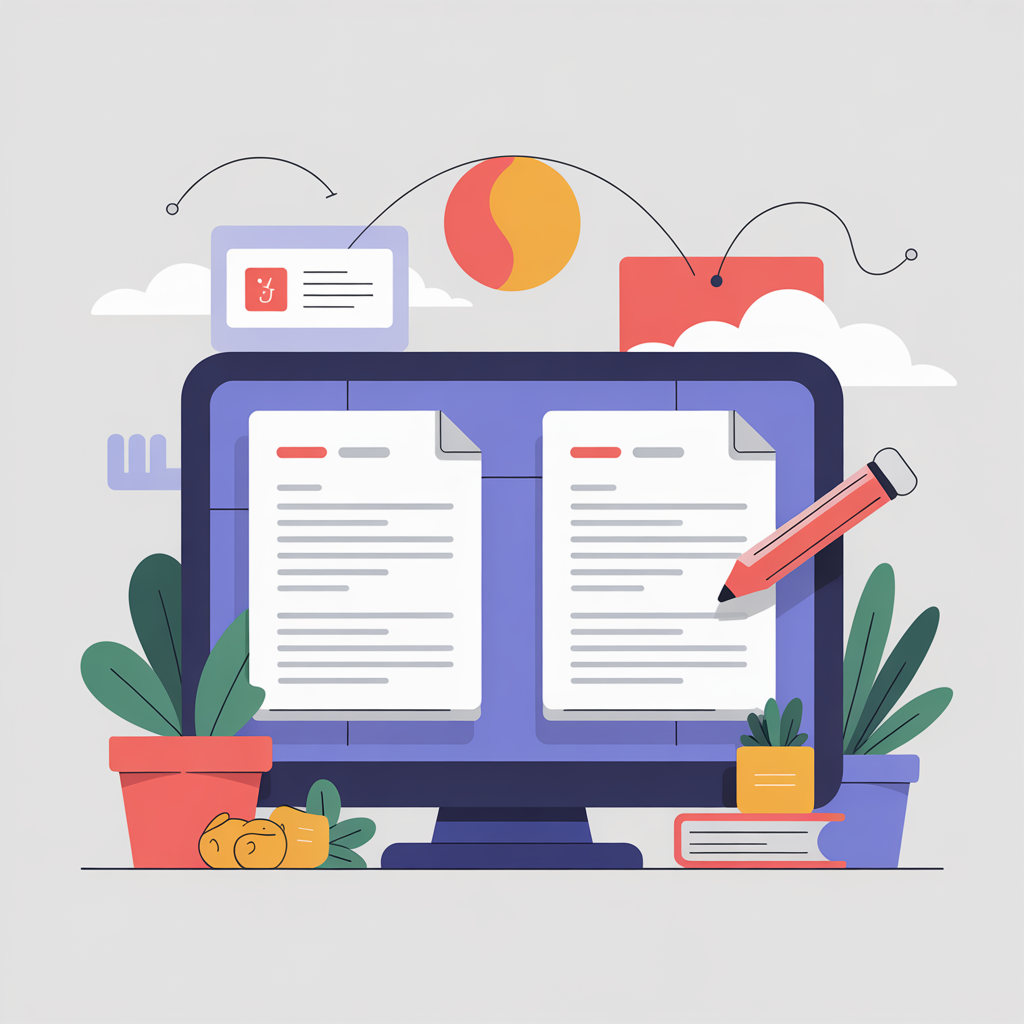
The side-by-side comparison feature allows users to view original and modified text versions simultaneously, facilitating quick identification of changes at the character level.
For effective analysis, tools like Draftable streamline this process. Simply upload both text versions and select the ‘Compare’ option.
Within moments, you’ll see a clear layout highlighting differences, making it easy to spot edits. Utilize the built-in comment feature to note significant changes or suggestions for further revision.
After reviewing, save your comparison for future reference or share it with colleagues for collaborative feedback. This method enhances both efficiency and accuracy in tracking document updates.
Highlighting Differences
Highlighting differences in text enables users to quickly spot edits, revisions, and inconsistencies, improving the review process significantly by using formatting colours.
Tools like Diffchecker and Grammarly’s revision feature facilitate this comparison by employing visual cues. For example, Diffchecker highlights additions in green and deletions in red, making it easy to see changes at a glance with visual representation.
Grammarly gives inline suggestions that clarify why a change is recommended, promoting better understanding. By using these tools, you can maintain version control and ensure all contributors are on the same page, leading to a smoother editing experience.
Integrating these into your workflow can yield significant efficiency gains.
Version Control
Version control in text comparison tools allows users to manage and track changes over time, ensuring that the most up-to-date information is always available across different document formats.
For instance, Microsoft Word offers a built-in version control feature that automatically saves revisions.
To effectively manage document revisions, establish a naming convention for file versions, such as using dates or keywords.
Regularly review changes and use the ‘Compare’ tool in Word to identify differences between versions.
Consider cloud solutions like Google Docs for real-time collaboration, which maintains a detailed version history. This method not only enhances accuracy but also encourages accountability among team members.
How to Use a Text Comparison Tool
Using a text comparison tool involves a straightforward process that enables users to upload documents and efficiently interpret results to identify discrepancies.
Uploading Documents
To begin analyzing differences, users must upload the documents they wish to compare, with support for various formats like PDF, Word, TXT, and RTF available in tools like Draftable.
- Start by navigating to the upload section of the tool. Click on the `Upload’ button, then select your desired files from your device.
- If using Draftable, remember that strategically preparing your documents can enhance accuracy; ensure they are finalized, as changes after uploading won’t reflect in the comparison.
- After selection, wait for the tool to process the documents, which usually takes under a minute. Review the generated comparison report, where differences are highlighted clearly for easy analysis.
Interpreting Results with AI and Machine Learning
Interpreting results from a text comparison tool involves understanding highlighted differences, notations, and overall document changes for effective revisions.
Start by identifying the key notations such as ‘additions’ marked in green and ‘deletions’ in red. For instance, if a word is crossed out, it suggests an edit that may improve clarity or grammar, with system requirements noted for accuracy.
Next, focus on any comments or suggestions; tools like Grammarly offer insights for tone adjustments or word choice.
To address discrepancies, cross-reference these suggestions with your original text entries to ensure the meaning remains intact while enhancing readability.
This process streamlines revisions and ensures a polished, coherent final draft.
Popular Text Comparison Tools
Numerous text comparison tools are available, ranging from robust online options to dedicated desktop software, catering to various user needs.
Online Options
Online text comparison tools like Diffchecker and Draftable provide convenient, accessible platforms for users to analyze documents without any software installation, featuring multi-language capability.
Several noteworthy online text comparison tools enhance document analysis:
- Diffchecker: Free with a premium version at $10/month, ideal for quick comparisons of two text files, facilitating offline tool needs.
- Draftable: Offers a free version and a $20/month option for unlimited comparisons, perfect for legal documents and Excel spreadsheets.
- Text Compare: Completely free, great for side-by-side document comparisons without stylistic formatting.
- WinMerge: While it requires download, it’s free and supports multiple file types, suitable for programmers.
These tools are invaluable for writers, lawyers, and developers needing to track changes efficiently, with integration capabilities for platforms like Google Drive.
Desktop Software
Desktop software like Microsoft Word offers advanced text comparison features that facilitate in-depth document analysis directly from the user’s computer, including capabilities for PowerPoint presentations.
For users seeking alternatives, tools like Beyond Compare, WinMerge, and DiffDog provide unique advantages.
- Beyond Compare ($60) excels in two-way comparisons, allowing users to merge changes seamlessly.
- WinMerge, a free option, is particularly useful for basic text comparisons, making it ideal for casual users who need quick checks.
- DiffDog ($99) stands out with its capability to handle XML and database comparisons, catering to developers.
Each tool serves distinct needs based on budget, complexity, and specific use cases, ensuring that any user finds a fit for their offline text comparison tasks.
Use Cases for Text Comparison Tools
Text comparison tools have diverse applications across various fields, from academic research to legal documentation, ensuring accuracy and consistency.
Academic Research
In academic research, text comparison tools help researchers ensure originality and track changes in collaborative documents, thus enhancing the integrity of their work, supported by plagiarism checker tools.
Tools like Turnitin and Grammarly are invaluable for detecting plagiarism and maintaining document integrity.
Turnitin not only checks for similarities across millions of sources but also provides detailed reports to help researchers revise their work, ideal for comparing text entries and ensuring document comparison quality.
On the other hand, Grammarly’s advanced features allow users to track changes in real-time, making it easy to maintain version control in collaborative projects.
By integrating these tools into their workflow, researchers can save time while ensuring high-quality, original manuscripts.
Legal Documentation
Legal professionals depend on text comparison tools to manage revisions in contracts and agreements, ensuring that sensitive information remains secure and accurate, with communication streamlined through platform integrations.
These tools allow teams to track amendments efficiently, with options like Adobe Acrobat Pro for PDF comparisons and Microsoft Word’s `Compare’ feature for Word documents.
For more robust needs, solutions such as Workshare or Litera Compare offer detailed insights, including highlighted changes and side-by-side views.
By implementing these user-friendly online tools, legal teams can significantly reduce errors during contract reviews, streamline the approval process, and enhance compliance by easily identifying deviations or unauthorized alterations. Tools like Diffchecker and Draftable, which support formats such as PDF, Excel, PowerPoint, HTML, TXT, RTF, XML, ODT, and EPUB, allow legal and dev teams to detect changes efficiently. By leveraging AI and Machine Learning, they can download reports, compare text, and utilize cloud storage solutions such as Google Drive, Dropbox, and OneDrive. Additionally, integrations with Microsoft Word, PDF files, and JavaScript enhance versatility, while solutions like Copyleaks offer security and compliance features. Legal teams can further benefit from integrating these solutions seamlessly within their systems.
Frequently Asked Questions
What is a text comparison tool and how does it highlight differences?
A text comparison tool, also known as a diff tool, identifies and displays discrepancies between two or more text documents. It typically highlights additions, deletions, and modifications using color-coding or distinct markers. This visual representation allows users to quickly spot changes, ensuring precision in content review, code management, and legal document analysis.
Why is effective document comparison crucial for accuracy and security?
Effective document comparison is crucial for maintaining accuracy by revealing unintended alterations or omissions, preventing errors in critical documents. For security, it helps detect unauthorized changes in code, contracts, or configurations, safeguarding against vulnerabilities or malicious tampering. This ensures data integrity, compliance, and reliable record-keeping across various fields.
What are the essential features of a good text comparison tool?
A good text comparison tool should offer side-by-side viewing, clear visual highlighting (e.g., color-coding) for differences, and line-by-line or word-by-word comparison options. Essential features also include the ability to ignore whitespace or case, merge changes, and support various file formats. User-friendliness and speed are also key for efficient workflow.